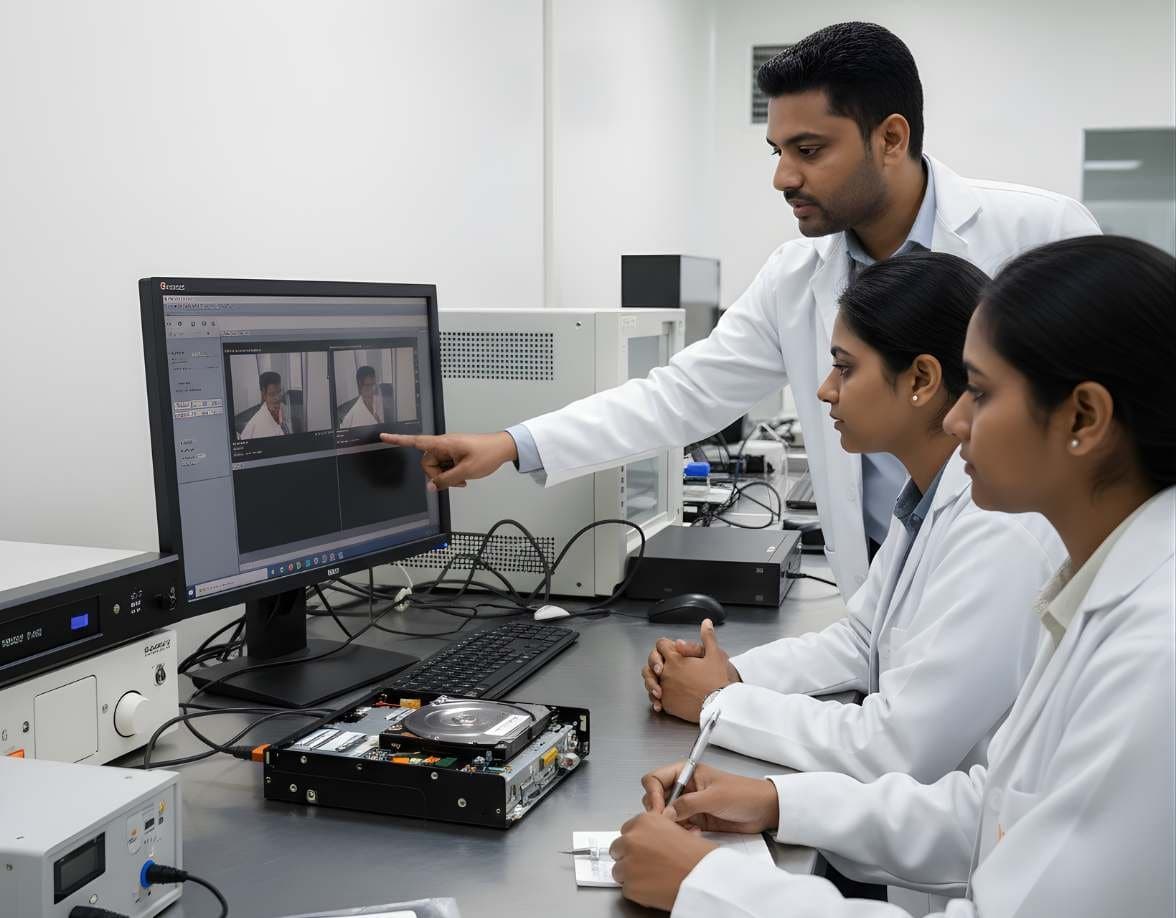
 VideoSurveillance & Image / Video ForensicsCCTV / DVR AnalysisExport footage from Hikvision, Dahua and other DVRs with correct times, frames and hashes
Explainer · Multimedia and video
Why CCTV and DVR Evidence Is Hard to Export
A DVR export is rarely a simple video file. It is a proprietary container that needs the maker's own player, with a clock that may be minutes off and a frame rate that changes with motion. This explainer covers what makes DVR evidence difficult, how to verify an export with hashes, when to image the whole disk and what to document.
By DFRTI editorial teamPublished 2 November 2026Reviewed 2 November 2026
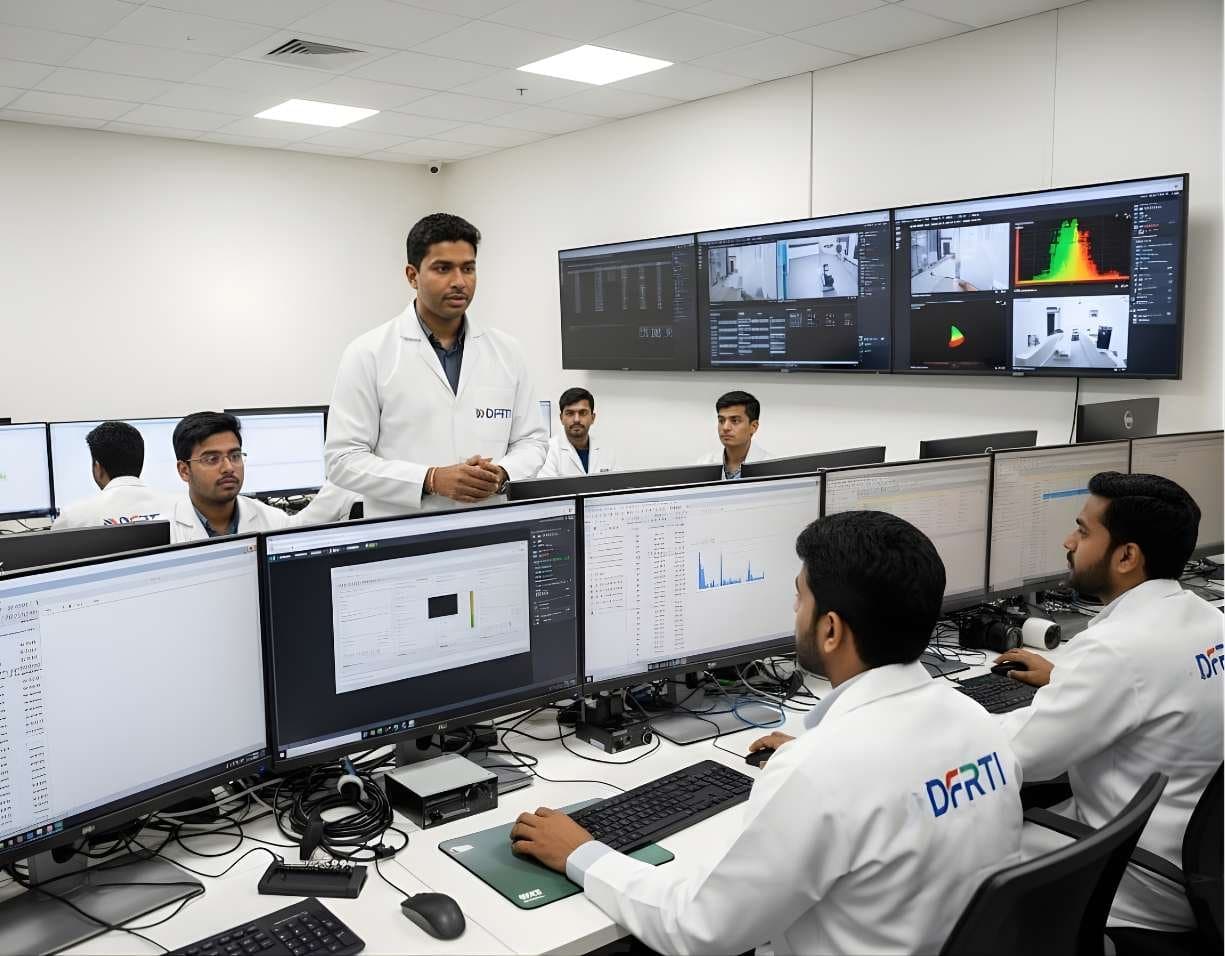
A generic scene: a shop is burgled at night, the owner says the camera caught it and the DVR in the back office holds eight cameras of footage. The investigator plugs in a pen drive, chooses export, and comes away with a folder of files that will not open on any computer in the office. This happens every day and it is not the investigator's fault. DVR evidence is hard because the recorder was designed to record and play back on itself, not to hand evidence to anyone.
The guidance we lean on here is SWGDE's Best Practices for Data Acquisition from Digital Video Recorders (version 1.0, 2018) and the OSAC proposed Standard Practice for Data Retrieval from Digital CCTV Systems (version 2.0, June 2020), hosted by NIST. Both are best-practice documents, not law, and both say the same two things: footage is perishable, so act early, and the native proprietary export is the best evidence, so collect it first.
Terms Worth Getting Straight
C
- Container and codec
- A container is the file structure that holds video, audio and metadata streams; a codec is the method used to compress each stream. A file may use a common codec such as H.264 inside a container nobody else can read. SWGDE's technical overview notes that in DVRs the video, audio and text metadata are often stored separately on the file system and assembled into a sequence only at playback.
I
- Image set versus bit-stream duplicate
- OSAC uses image set for the exported files and bit-stream duplicate for a sector-level copy of the DVR hard disk. They are different objects with different hashes and different uses.
P
- Player-only export
- An export that plays only in the manufacturer's viewer, which the DVR may copy to the pen drive alongside the data or which must be downloaded from the maker's site. OSAC advises collecting the player or codec together with the data and confirming playback on another computer before leaving.
- Proprietary file format
- OSAC defines it as any file format unique to a specific manufacturer or system. It is also the format most likely to preserve the original quality, timing and metadata, which is why both documents put it first.
T
- Time offset
- The difference between the DVR clock and a trusted reference time, recorded at the scene. Footage timestamps are only meaningful once this offset is known.
Proprietary File Systems and Containers
Many DVRs do not use a PC file system at all. They write video streams into their own layout across the disk, so a DVR drive connected to a Windows machine shows as unformatted or RAW, and OSAC warns that a bit-stream duplicate that looks empty may still hold the footage. The export menu then wraps the chosen period into the maker's container, often with a copy of the maker's player. Convert that to an open format such as AVI or MP4 and three things can happen: the video is recompressed, the frame size or aspect ratio changes and, as OSAC notes directly, time and date metadata may be lost or modified.
So collect the native files and the player first, and take the open-format export as well when time and the system allow, labelled as a convenience copy. If the DVR offers an engineer or administrator login, OSAC observes that it usually unlocks more export options, including native export; the owner's password and permission are part of the record.
- Native export plus the player is the master evidence
- Open-format exports are convenience copies and must be labelled so
- A RAW or empty-looking drive may hold the footage
- Check that the remote viewer exports video, not stills, if used
Time Offsets and Variable Frame Rates
Never correct the DVR clock, even if it is obviously wrong. SWGDE and OSAC both say to compare it against a known time reference, record the offset, and leave the system alone, because changing the time can disturb the indexing of recorded data. IP cameras on a network recorder may keep their own clock, so OSAC asks that both be documented. Also establish whether anyone changed the time between the incident and your visit, which would make a single offset wrong for part of the recording. Record the local time zone and whether daylight saving applied at the time of the incident, since Indian systems are often shipped with a foreign default.
Frame rate is the other trap. Most DVRs record at a configured rate per camera and many drop frames when nothing moves, so the stream has a variable frame rate. SWGDE's frame timing best practice warns that proprietary video files may produce inaccurate frame rate reporting in many playback and processing programs. The practical rule is that the time of an event comes from the timestamps embedded in the recording and the measured offset, never from a playback counter or from frame number divided by a nominal rate. Report the frame rate as recorded in the DVR settings and as measured, and say if the two differ.
Verifying the Export With Hashes
SWGDE's DVR document points to its integrity-of-imagery guidance for authenticating what was acquired. The routine below is our recommended minimum.
- 01Hash at the scene
As soon as the export finishes, compute SHA-256 of every exported file and of the player installer on the collection laptop. Record the values with file names and sizes in your notes. A photograph of the DVR screen showing the export period and camera list belongs beside them.
- 02Prove playback
Open the files with the collected player on a separate computer before leaving. OSAC asks you to confirm that the files play, the viewer works, the picture matches what the DVR shows and the right cameras, dates and times were retrieved.
- 03Hash again at the lab
On receipt, recompute the hashes and record the match in the chain of custody. From here the native files are the master and are never worked on directly.
- 04Hash every derivative
Each conversion, clip or enhanced still is a new object with its own hash, its own tool and version and its own entry in the report. Keep the processing path from master to derivative written down.
- 05Restore the system
Return the DVR to its original settings and confirm it is recording again, ideally in the owner's presence, and record that you did so.
When to Image the Whole DVR Disk
Export is the normal route. A bit-stream duplicate of the drive, or removal of the unit, is for the cases below, and it brings its own rules from the OSAC practice.
- Export is impossible or crippled: no working ports, a locked menu, a failed unit, or a remote viewer that only exports stills.
- The volume is too large to export in the time available, or the footage is about to be overwritten.
- The period of interest has already been overwritten or deleted on the recorder and may survive only in unallocated areas of the disk.
- Shut the system down properly before removing any drive, even one that looks hot-swappable, and photograph the drive positions. Duplicate every internal drive, not just the one in the caddy.
- Produce a bit-stream duplicate, not an image set, onto a brand new drive. Some recorders will run only with the original drive, so you may have to put the duplicate back and take the original, or take the unit with its drive, power supply, remote, dongle and keys.
- Weigh the legal and practical side: the owner's business loses its recording while the unit is gone, consent or authority for removal must be clear and the original drive is master evidence.
- Expect the duplicate to look empty on a PC. Analysis of a proprietary DVR disk is a laboratory task with tools that understand the maker's layout, and it is outside the scope of the acquisition documents.
Documenting the Export
The OSAC practice provides a worksheet in its appendix. These are the fields that matter most when the footage is challenged a year later.
- Recorder make, model, serial number and firmware version; number of cameras and hard drives; recording mode, quality setting and configured frames per second per camera; retention or overwrite setting.
- DVR displayed time against the reference time, the source of the reference, the time zone setting and whether any time change occurred between incident and acquisition.
- Who exported, when, by which menu path, with which export settings, onto which media; the login used and who authorised it.
- File names, sizes and SHA-256 values for every exported file and for the player; the player version.
- Playback verification: on which computer, with which player, what was confirmed.
- Photographs of the recorder, its connections, its screens during export and the media used.
- A chain-of-custody record starting at the moment of export, not at the lab.
This is an explainer written by the DFRTI editorial team from the sources below. It is not a vendor announcement and DFRTI has not independently tested any product named in it unless the text says so.
Sources
- SWGDE Best Practices for Data Acquisition from Digital Video Recorders (17-V-002, v1.0, 2018)Scientific Working Group on Digital Evidence
- OSAC proposed Standard Practice for Data Retrieval from Digital CCTV Systems (v2.0, June 2020)OSAC, hosted by NIST
- SWGDE Best Practice for Frame Timing Analysis of Video Stored in ISO Base Media File Formats (19-V-005)Scientific Working Group on Digital Evidence
- SWGDE Technical Overview of Digital Video Files (17-V-001)Scientific Working Group on Digital Evidence
Tools mentioned
- FFmpegFFmpeg is the engine behind most media software. For an examiner its three commands inspect a file's streams, extract frames without guessing and convert footage for viewing with every setting on record.FFmpeg project
- MediaInfoMediaInfo reads a media file's structure and reports it: container, video and audio codecs, bit rates, frame rate, duration, encoding settings and tags. It tells an examiner what a file is before any player opens it.MediaArea
- Amped FIVEAmped FIVE is a workstation for CCTV and image evidence. It opens proprietary DVR files, applies documented filters to make what is there easier to see and writes a report of every step. Clarifying a picture is a different job from proving it is genuine.Amped Software
- Forensic DuplicatorsA forensic duplicator is a standalone imaging device. It copies a source drive to a destination drive or image file, hashes the result and verifies it, without a computer in between.Various manufacturers
- Hardware Write BlockersA hardware write blocker sits between an evidence drive and the examiner's computer and refuses every write command. It is the first device a new examiner should understand.Various manufacturers
- ExifToolExifTool reads the metadata inside a file and prints it in full: camera, lens, timestamps, GPS, editing software, maker notes and embedded thumbnails. It is the first stop when a photo or video has to explain where it came from.Phil Harvey
Learn this properly
VideoSurveillance & Image / Video ForensicsCCTV / DVR AnalysisExport footage from Hikvision, Dahua and other DVRs with correct times, frames and hashesVideoSurveillance & Image / Video ForensicsImage & Video MetadataRead EXIF, XMP, GPS tags and MP4 atoms with ExifTool and know what each field can prove LegalFoundation & Legal CoursesForensic Report WritingWrite clear forensic reports that answer the questions asked and survive cross-examination.
Go deeper with DFRTI
Free pages explain the ground. Structured courses, lab work and a mentor take you from knowing about it to doing it on a case.